Answering the buyer’s search for a reliable PC video recorder, these picks cover standalone recorders, PCIe/USB capture cards, and screen/camera software. They’re suitable for archiving old tapes, streaming gameplay, or capturing tutorials. This guide highlights who each product is best for and why it stands out, with practical tradeoffs to help you choose.
| Product | Type | Best For |
|---|---|---|
| ClonerAlliance Box Pro | Standalone 1080p60 capture & DVR | Archives from analog sources, TV viewing, and easy TV playback |
| UNISHEEN HDMI Capture Card | HDMI/DisplayPort capture over USB-C | Live streaming, game capture, multi-device inputs |
| AVerMedia EZRecorder 330G | HDMI capture with 4K pass-through | Gaming, set-top box recording, 4K passthrough with HD recording |
| Debut Screen and Video Recorder Free | Screen recording software | Tutorials, demonstrations, multi-source screen capture |
| Nero Screen Recorder PRO 365 | 4K screen recording with webcam and audio | High-quality tutorials and gameplays with integrated audio |
ClonerAlliance Box Pro, 1080p60 Video Recorder
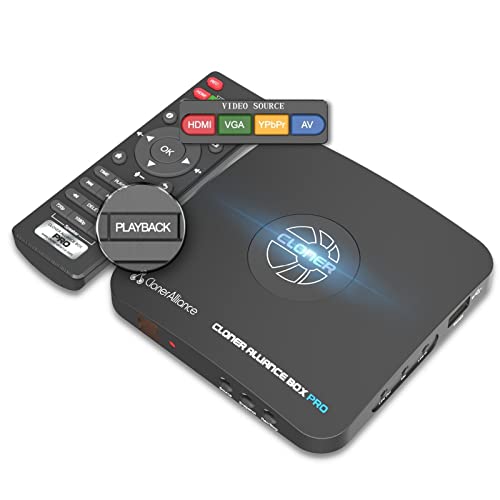
The ClonerAlliance Box Pro is a standalone 1080p60 video capture device and DVR. It records to USB storage while outputting playback to a TV, with no PC required. It supports HDMI, RCA, composite, component, YPbPr, and VGA inputs, making it a flexible option for converting tape archives or capturing game footage without a computer.
- Best for: Users who want a plug-and-play archiving solution from analog sources and display on a TV.
- Why selected: Combines analog-to-digital capture, TV playback, and scheduling features in one device, simplifying retro-video preservation.
- Caution: May require formatting and USB storage compatibility (MP4) considerations depending on the drive used.
UNISHEEN HDMI Capture Card

The UNISHEEN device acts as a standalone video recorder with 4K60 passthrough and 1080p60 recording over USB-C. It accepts HDMI or DisplayPort inputs and is suitable for live streaming, game recording, device mirroring, and more. It is designed to adapt to many devices, including phones, media players, and set-top boxes.
- Best for: Users who want high-quality passthrough plus reliable 1080p60 capture from diverse inputs.
- Why selected: Flexible input options and USB-C connectivity support a broad range of devices without a PC.
- Caution: 4K passthrough may require compatible source content; file size can be large with high-resolution footage.
AVerMedia EZRecorder 330G

The EZRecorder 330G provides 4K pass-through and 1080p60 recording via HDMI capture. It includes an IR blaster for remote control of set-top boxes, and supports HEVC (H.265) for efficient storage. It is well-suited for digitizing legacy content and capturing high-quality gameplay or TV content from compatible sources.
- Best for: Viewers who want 4K passthrough while recording in HD and simple remote control integration.
- Why selected: Combines modern compression with convenient remote control for TV set-top integration.
- Caution: Not all content may be recordable if HDCP/DRM protections apply; ensure source compatibility.
Debut Screen and Video Recorder Free

NCH Debut is screen recording software that captures your screen, a webcam, or a combination. It can record specific regions or full-screen video and supports multiple input sources for tutorials and demonstrations. No hardware capture is required beyond a computer, making it accessible for software-focused projects.
- Best for: Creators producing software tutorials or product demos who want flexible on-screen capture without extra hardware.
- Why selected: Straightforward, software-based solution with multi-source recording capability.
- Caution: Software-based capture relies on your computer’s hardware; performance varies by system.
Nero Screen Recorder PRO 365

Nero Screen Recorder PRO 365 offers 4K screen recording with audio and webcam, designed for tutorials, gameplays, and professional-style screen captures. It supports multiple recording configurations and emphasizes accessibility with optional subtitles and user-friendly controls.
- Best for: Content creators needing high-resolution screen capture with integrated audio and webcam footage.
- Why selected: Strong feature set for polished tutorials and gaming recordings with additional accessibility options.
- Caution: Annual license means ongoing cost; evaluate long-term use before committing.
Buying Guide
What should I consider when choosing a PC video recorder?
Think about whether you want a standalone device or software running on a PC. Standalone recorders simplify archiving from analog sources and TV playback, while PC-based options offer flexible editing and source combinations. Consider input types (HDMI, RCA, VGA), whether you need 4K passthrough, and how you’ll store recordings (local USB drives, internal storage, or cloud).
Connectivity and compatibility
Check input/_output compatibility with your devices. USB-C capture devices work well with modern laptops, while HDMI-only devices may require adapters for older gear. If you plan streaming, ensure your PC meets the encoding requirements to handle 1080p60 or 4K60 efficiently.
Storage and file formats
Look for devices that offer MP4 or MOV outputs with H.264 or H.265 encoding for efficient storage. Ensure your drive format is compatible (exFAT/NTFS/FAT32) and consider drive speed and capacity for longer recordings or 4K footage.
Ease of use and workflow
Standalone recorders are typically easier for beginners who want plug-and-play functionality. Software solutions provide editing and multi-source recording but may require more setup and a capable PC. Assess the learning curve and your preferred workflow when selecting.
Security and privacy
Webcams and screen capture tools with privacy features (such as shutter covers) help protect privacy. For screen capture, consider whether subtitles or transcripts are desired or required for accessibility and searchability.
Pricing and licensing
Standalone devices have upfront costs and storage considerations. Software options may require annual licenses or subscriptions. Balance the total cost of ownership with the features you actually use and your long-term needs for archiving or content creation.
Quick comparison at a glance
- Standalone box devices: Great for analog-to-digital archiving and TV playback without a PC.
- USB-C capture cards: Flexible, PC-friendly capture from diverse sources, often ideal for streaming.
- 4K passthrough with HD recording: Best for future-proofing and high-quality content without sacrificing playback quality.
- Screen recording software: Lowest barrier to entry; best for tutorials and demos on existing hardware.
FAQ
- What’s the difference between a standalone recorder and a capture card?
Standalone recorders digitize inputs and save to USB without a computer, while capture cards require a PC or device to record and often enable editing and streaming.
- Can I record HDMI content from a set-top box with these devices?
Many devices support HDMI input and HD recording, but HDCP or DRM content may be restricted. Check device specifications and source compatibility.
- Is 4K passthrough necessary for all users?
No. If you mainly archive analog tapes or stream in 1080p, a 4K passthrough is optional but future-proofs your setup.
- Do I need software to record on a PC?
No for standalone devices. Yes for software-based solutions, which may offer editing features and multi-source capture.
- What storage should I use for long recordings?
High-capacity, fast USB drives or SSDs are recommended, formatted to exFAT or NTFS for compatibility with most devices.
- Are privacy features important for webcam capture?
Yes. Built-in privacy covers or physical shutters help protect against unintended video recording when not in use.