If you need to move programs, files, and settings from an old PC to a new one, these PC transfer software options are designed to streamline the process. This guide highlights five practical choices for different needs—personal use, business deployments, and multi-PC migrations. Each entry notes who it’s best for and why, along with a realistic limitation to consider.
Overview of top picks:
| Product | Best For | Main Benefit |
|---|---|---|
| Laplink PCmover Ultimate 11 | Home users and tech enthusiasts needing AI-guided transfers | AI-assisted transfer insights and Wi‑Fi Direct for fast moves |
| Laplink PCmover Professional | Individuals migrating to a new PC with robust transfer options | Comprehensive transfer with AI guidance and fast connections |
| Laplink PCmover Professional (Instant Download, 2 Use) | Small teams or couples upgrading two PCs quickly | Two-use license and simple wizard-driven process |
| Laplink PCmover Business Standard | Small to mid-size businesses needing predictable licensing | Tiered licenses and flexible transfer methods |
| Free Fling File Transfer Software for Windows | Users needing simple file transfer via standard FTP | FTP-based, easy to use for file transfers and automation |
Laplink PCmover Ultimate 11

Best for power users who want AI-assisted guidance and fast transfers. PCmover Ultimate 11 includes AI-assisted transfer insights, SafeErase for secure data wiping, and an optional high-speed Ethernet transfer option. The license covers one source and one destination PC, with multiple transfer attempts allowed. A potential limitation is that additional licenses are needed for migrating more than two PCs.
- AI-assisted transfer insights guide item selection and adjustments.
- Wi‑Fi Direct support for faster wireless connections.
- Includes SafeErase options to securely wipe old data.
Who it’s best for: Individuals who want a guided, efficient migration with advanced connectivity options. Choose this if you anticipate multiple transfer attempts and value AI recommendations.
Limitations to consider: One license targets a single source-destination pair; scaling requires more licenses.
Laplink PCmover Professional

Best for individuals migrating to a new PC who want a full transfer experience with supportive AI features. PCmover Professional emphasizes moving the entire personality of the old PC, with Wi‑Fi Direct for quicker connections and AI-assisted summaries of transferable items. A caveat is that one license supports a single source-destination pair, so multiple PCs require additional licenses.
- AI Assistant provides a clear summary of transferable items.
- Wi‑Fi Direct enables faster connections than older methods.
- Suitable for users migrating all apps, files, and settings.
Who it’s best for: Solo users or households upgrading one PC to another with a need for a thorough, guided migration.
Limitations to consider: May require extra licenses for additional PCs beyond the primary pair.
Laplink PCmover Professional (Instant Download, 2 Use)
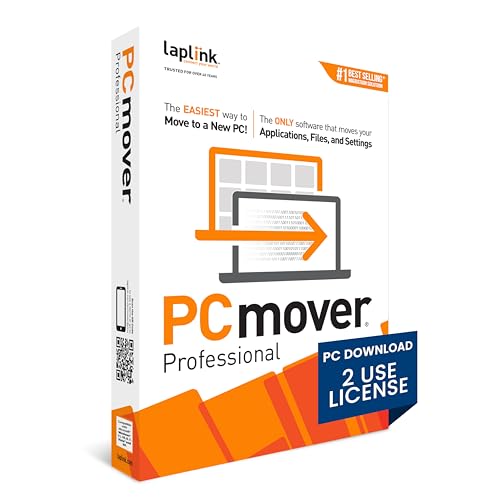
Better for users who want a quick, two-PC migration with a straightforward setup. This option emphasizes ease of use: install on both PCs, follow a wizard, and let PCmover handle the transfer. The auto-connect feature ensures fast discovery of the best transfer method. Limitation: it’s a two-use license, so additional migrations require more licenses.
- Easy-to-Use setup with a guided wizard.
- PCs auto-connect to detect the fastest transfer method.
- Instant download for immediate access to the software.
Who it’s best for: Individuals who need a simple, reliable migration between two PCs with minimal setup effort.
Laplink PCmover Business Standard

Best for organizations seeking predictable licensing and scalable migrations. PCmover Business Standard offers tiered licensing (1, 5, 10, 25 transfers) and supports multiple connection types including network, USB, and Wi‑Fi Direct. It’s ideal for IT deployment plans where budgeting and centralized control matter. Limitation: licensing complexity increases with larger team deployments, so plan licenses to match expected volume.
- Upfront licensing tiers for predictable costs.
- Automatic transfer of applications, profiles, files, and settings.
- Flexible transfer methods adapt to bandwidth and infrastructure.
Who it’s best for: IT teams and small businesses that deploy new PCs at scale and want centralized licensing management.
Free Fling File Transfer Software for Windows

Best for users who need a straightforward FTP-based file transfer solution without paid licenses. Free Fling File Transfer Software offers familiar FTP-style interface and automation features for file synchronization. It does not cover full system migrations or application transfers, so use this when you primarily move files. Limitation: not a complete PC-to-PC migration tool.
- Intuitive FTP-like interface for easy file transfers.
- FTP automation and synchronization capabilities.
- Great as a companion tool for file-centric moves.
Who it’s best for: Users needing reliable file transfer capabilities rather than full system migrations.
Buying Guide: Key Considerations for PC Transfer Software
- Scope of migration: Do you need to move applications, settings, and files, or just files? Choose software that matches your scope.
- License model: Are you migrating one PC, or managing multiple deployments? Consider per-use, tiered, or enterprise licensing.
- Transfer method: Look for Wi‑Fi Direct, USB, USB-C, and network options. Wi‑Fi Direct can speed wireless transfers, while wired options are more stable in bandwidth-limited environments.
- AI-assisted guidance: AI features can help identify transferable items and optimize the migration path, reducing setup time.
- Security features: SafeErase or similar data-wipe capabilities ensure old data is securely removed if needed.
- Compatibility and OS support: Confirm compatibility with your Windows version and plan for future updates.
- Scalability: If you anticipate multiple PC migrations, prioritize licensing that scales with your needs and budget.
FAQ
- What is PC transfer software used for?
It moves applications, files, and settings from an old PC to a new PC to simplify onboarding and minimize downtime. - Can I migrate multiple PCs with one license?
Some products offer tiered or multi-use licenses; check the license terms for the number of permitted migrations per purchase. - Is Wi‑Fi Direct faster than USB for transfers?
Wi‑Fi Direct can be faster in some setups, especially without cables, but wired USB connections are typically more stable if cables are available. - Do these tools preserve user profiles and desktop layouts?
Most professional options include settings and profiles as part of the migration, but verify the scope for your chosen product. - Are AI-assisted transfer insights helpful?
AI features can simplify planning by summarizing transferable items and recommending options, reducing manual steps. - What should I consider for business deployments?
Look for predictable licensing, scalable licenses, and flexible transfer methods to fit IT workflows.