When a PC slows down or starts acting flaky, the right repair software can quickly restore performance and stability. This guide highlights five practical tools suited for different needs, from automatic maintenance to comprehensive recovery options. Ideal buyers include: busy users seeking hands-off optimization, IT-savvy individuals needing deeper repair capabilities, and users facing boot or driver issues who want ready-to-use recovery tools.
| Product | Best For | Key Benefit |
|---|---|---|
| iolo System Mechanic | All-around optimization | Automated fixing and stability |
| Win Optimizer 28 | Deep registry and system tweaks | Comprehensive control and speed |
| 5-in-1 Win Repair & Reinstall USB | Windows repair and reinstall | Bootable toolkit for serious issues |
| Ralix Reinstall DVD for Windows 10 | Factory reset and recovery | Bootable repair and Windows reinstall |
| DriverUpdater | Driver maintenance | Stable peripherals and devices |
iolo System Mechanic: Automatic PC Repair & Speed Up

Best for users who want a set-it-and-forget-it solution. iolo System Mechanic autonomously repairs issues and applies maintenance updates, aiming to stabilize performance and prevent slowdowns. It claims to fix thousands of issues by leveraging live updates from iolo Labs, and it includes features to protect privacy by wiping sensitive browsing history and patching Windows vulnerabilities.
Why choose this: the product targets general PC health, combining repair with ongoing protection. Use it if you prefer automated corrections over manual tweaks. A potential limitation is that highly customized or low-level system changes may require more granular tools beyond automated routines.
Win Optimizer 28: Deep System Control

Best for users who want more control over the Windows experience. Win Optimizer 28 emphasizes comprehensive system optimization, with claims of fast registry cleaning and error reduction. It markets itself as a robust toolkit for keeping Windows lean and responsive, making it a good fit for power users or IT administrators managing multiple machines.
Who benefits: choose this if you value granular control and frequent optimization sessions. Caution: high-level registry changes can affect stability if settings are pushed aggressively; proceed with default or conservative tweaks for best results.
5-in-1 Win Repair & Reinstall USB Drive

Best for users who need a portable Windows repair toolkit. This bootable USB drive supports Windows 11 (amd64 + arm64), Windows 10/7, and includes tools to repair boot issues, recover data, remove viruses, reset passwords, and fix common boot errors. It is a practical choice for system administrators and users who want a self-contained recovery environment.
Why it stands out: its multi-tool approach allows on-device recovery without a separate installation. Limitations to consider: bootable tools may require some familiarity with BIOS/UEFI boot order and ISO management.
Ralix Reinstall DVD For Windows 10
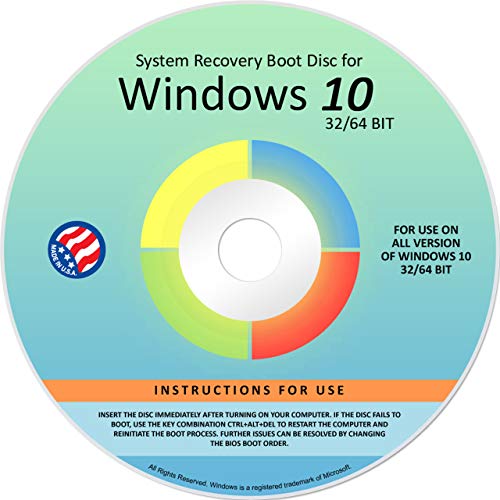
Best for users needing to reinstall Windows with a clean slate. Ralix Reinstall DVD supports multiple Windows versions and is designed to fix boot problems by creating a fresh Windows instance. It’s suitable for machines that refuse to start or have corrupted boot configurations.
Selection rationale: it offers a straightforward, disk-based reinstall option when online repair tools fail. Limitation: does not include a product key, so activation may require an existing license or separate acquisition.
DriverUpdater: Automatic Driver Maintenance

Best for ensuring hardware peripherals run smoothly. DriverUpdater focuses on keeping Windows device drivers current, which can improve stability and performance for games, applications, and peripherals like printers and audio devices. It claims to replace outdated drivers with verified versions to reduce instability.
Why it’s a fit: choose this if you rely on external devices or peripherals that often encounter driver issues. Caution: driver updates can occasionally cause compatibility quirks with older hardware; test critical peripherals after updates.
Buying Guide: Choosing the Right PC Repair Software
What should you consider before buying? Start with your primary goal: automatic maintenance, deep system tweaks, or bootable repair tools. Assess compatibility with your operating system, the level of automation you desire, and how hands-on you want to be with maintenance tasks.
- Automation vs. control: If you want hands-off maintenance, prioritize tools marketed for automatic repairs and ongoing protection. If you prefer control, select products that emphasize granular settings and customization.
- Recovery capabilities: For PCs that won’t boot, a bootable USB or DVD option is essential. Look for bundles that include recovery and reinstall features.
- Driver and hardware support: If peripherals are a frequent pain point, a driver updater with broad device coverage can be valuable.
- Privacy and security: Tools offering browser history wiping and vulnerability patches can help with privacy and protection, particularly on shared or work devices.
- Ease of use: Consider whether you need a simple interface for everyday use or a comprehensive toolkit that requires some IT experience.
Performance and Safety Considerations
Running repair utilities can impact system resources. Prefer products with clearly stated maintenance routines and safe defaults. Avoid aggressive registry changes unless you are comfortable with potential rollback steps. Always back up important data before performing major repairs.
What About Free Alternatives?
Free tools can offer basic cleanup, driver updates, or startup optimization. However, paid PC repair software often provides deeper diagnostics, automated maintenance, and bootable recovery options that free tools may lack. Evaluate the added value against cost and risk for your needs.
FAQ
- Is PC repair software safe to use on all Windows versions? Most tools support recent Windows versions, but check compatibility with your specific edition and architecture before purchase.
- Can these tools speed up a very old PC? They can improve responsiveness by cleaning junk, optimizing startup, and updating drivers, but hardware limits may cap overall performance.
- Do I need to back up before using repair tools? Yes. Back up critical files to prevent data loss during repairs or reinstallations.
- Are bootable repair drives reliable for system recovery? They provide a portable environment for diagnostics and fixes, which can be essential when Windows won’t boot.
- Should I use multiple tools at once? It’s best to use one primary tool for routine maintenance and keep others for specific issues, to avoid conflicting actions.
- How do I choose between automatic and manual repair options? If you lack time or expertise, automatic maintenance works well; if you need precise control over changes, opt for manual configurations.