When data loss hits partitions, you need software that can recover files, restore partitions, and repair failed disks. This guide targets buyers seeking reliable partition recovery solutions for Windows systems, USB drives, and external storage. The top picks below cover personal and professional needs, from deep-scanning recovery to full-system backups that guard against future losses. The buyers most likely to benefit are IT admins, students, freelancers, and home users who want straightforward recovery or robust disaster-prep tooling.
| Product | Main Strength for Partitions | |
|---|---|---|
| Stellar Data Recovery Professional for Windows | Rescues data across NTFS/FAT/exFAT drives and lost partitions | Windows users needing broad file-type recovery |
| AOMEI Backupper PRO | System backup, disk cloning, and quick restoration after failures | Users who want reliable backups and partition recovery |
| HIRENS BOOT DVD x64 UEFI | Partition tools and recovery utilities from a portable toolkit | Tech-savvy users needing on‑disk repair without OS |
| Backup Pro 27 | Full-system backup with recovery options and cloud/drive storage | Cross-platform backups and disaster recovery planning |
| Recovery Boot Password Reset CD | Bootable recovery environment to access disks when OS won’t load | Passwords, repairs, and data access in non-boot scenarios |
Product details and links are provided below to help you compare capabilities quickly. Each entry highlights who the product is best for, why it’s a good choice for partition recovery, and a practical limitation to keep in mind.
Stellar Data Recovery Professional for Windows

Best for: Windows users who need broad file-type recovery across partitions and storage media. This tool supports recovery from NTFS, FAT, and exFAT drives and can retrieve documents, media, and emails even after corruption or formatting. The software also claims to recover data from a wide range of storage devices, including HDDs, SSDs, USB drives, and optical media.
Why selected: It targets partition-related data loss scenarios common to Windows environments and emphasizes versatility in file formats and storage types. The interface is designed to guide non-experts through the recovery workflow.
Caution: Results depend on the extent of data loss and drive health; severely damaged sectors may limit recoverable files.
AOMEI Backupper PRO
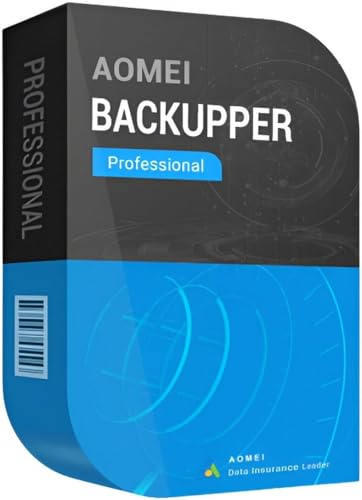
Best for: Windows users who want comprehensive backup, recovery, and protection against malware or hardware failures. It offers backup, file synchronization, and disk cloning to safeguard partitions and systems.
Why selected: The package emphasizes fast restoration after system failures and includes protection against malware or ransomware by enabling restore from backups, which is essential when partitions are compromised.
Caution: The product copy emphasizes features rather than detailed compatibility; confirm Windows version support before purchase for your system.
HIRENS BOOT DVD x64 UEFI
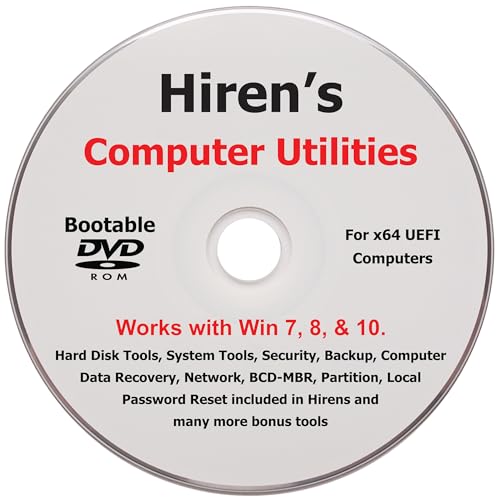
Best for: Tech-savvy users who need a portable suite of partitioning, repair, and recovery tools independent of the active OS. This bootable DVD/UEFI toolkit provides utilities to analyze, repair, and recover drives.
Why selected: It aggregates professional-grade tools frequently used by PC shops, enabling partition management, system repair, and data recovery when the operating system cannot boot.
Caution: Requires comfort with bootable media and diagnostic tools; not a plug-and-play solution for beginners.
Backup Pro 27

Best for: Users seeking a robust full-system backup solution with options to restore entire OS images, per-partition backups, and flexible storage targets.
Why selected: The software emphasizes secure data handling and flexible storage destinations, which helps protect partitions and recovery-ready configurations.
Caution: The description highlights broad backup features; verify that the specific partition recovery workflow aligns with your restore needs.
Recovery Boot Password Reset CD

Best for: Users who need a bootable recovery environment to access disks when the operating system won’t boot. Useful for password recovery and basic partition access in non-boot scenarios.
Why selected: It offers a non-OS-based path to recover data or access partitions, which is valuable when partitions are inaccessible due to boot issues.
Caution: This tool focuses on boot and access recovery; it may not replace a full partition-rescue software in complex data-loss cases.
Buying Guide: Key Considerations for Partition Recovery
- Scope of recovery: Decide if you need file-level recovery, partition restoration, or full-disk imaging. For partitions, choose tools that specifically target partition integrity and restoration.
- Operating system compatibility: Ensure the software supports your Windows version and file systems (NTFS, FAT32, exFAT). Mac users may require separate Mac-specific tools.
- Bootable recovery options: Bootable media can rescue data when the OS cannot boot. Consider whether a bootable DVD/USB is included or available as an add-on.
- Backup-first approach: If you frequently face data-loss risk, select a solution that combines robust backup with recovery capabilities to minimize downtime.
- Device coverage: Confirm support for HDDs, SSDs, USB flash drives, memory cards, and external enclosures commonly used in partition-related failures.
- Safety and data integrity: Look for write-protection modes and non-destructive scanning that preserve existing data while recovering files.
- Limitations and caveats: Some tools are great for certain file types or media but may struggle with severely damaged drives. Identify your worst-case scenario and test accordingly.
- Ease of use vs. power: Home users may prefer guided wizards, while IT pros may value deep scanning controls and granular recovery options.
Frequently Asked Questions
- What is partition recovery software used for?
It’s used to recover data from lost or damaged partitions, restore inaccessible drives, and rebuild corrupted partition tables to regain access to stored files.
- Can partition recovery fix a drive that won’t boot?
Yes, many tools provide bootable environments or recovery modes to access disks when the operating system cannot boot.
- Is a backup solution necessary for partition recovery?
Having backups is highly recommended. Recovery tools solve data loss, while backups prevent future losses by enabling quick restores.
- Do these tools support SSDs and HDDs equally?
Most reputable recovery and backup tools support both SSDs and HDDs, but verify compatibility with the specific drive type and firmware.
- Are there risks in using partition recovery software?
There is a risk of overwriting data if the recovery target is incorrect. Use read-only or non-destructive modes when possible and recover to a different drive.
- Do I need Mac-specific tools if I use Windows?
Windows partition recovery tools work for Windows drives. If you also work with Mac files, consider a Mac-compatible recovery tool as needed.