When choosing a mouse for video editing, focus on precision, tactile feedback, and multi-device workflow. The top picks below are suited for different editing styles: creators who require haptic controls, professionals who juggle multiple computers, and those who prefer ergonomic designs to reduce fatigue during long sessions.
Summary of chosen products:
- Logitech MX Master 4 Ergonomic Wireless Mouse with Haptics — Graphite
- Logitech M720 Triathalon Full Size Multi-Device Wireless Mouse — Black
- ProtoArc EM11 NL Wireless Ergonomic Vertical Mouse — Black
- Logitech MX Master 4 for Mac — Space Black
- TECKNET Wireless Mouse, Side Scroll Bluetooth Rechargeable, 3-Device
Logitech MX Master 4 Ergonomic Wireless Mouse

Best for editors who want tactile feedback and app-specific shortcuts at their fingertips. The Haptic Sense Panel provides customizable feedback for actions, shortcuts, and notifications to speed up workflow. The Actions Ring places commonly used tools within easy reach, adapting to each app. The MagSpeed scroll wheel offers fast, precise scrolling, ideal for navigating timelines and large project files. This model emphasizes precision and a comfortable grip for long editing sessions.
- Best for: Pro video editors who need highly customizable controls and tactile feedback
- Why selected: Combines haptic feedback with quick access overlays for efficient editing tools
- Limitation: Higher price point; may be more features than casual users need
Logitech M720 Triathalon Full Size Multi-Device Wireless Mouse
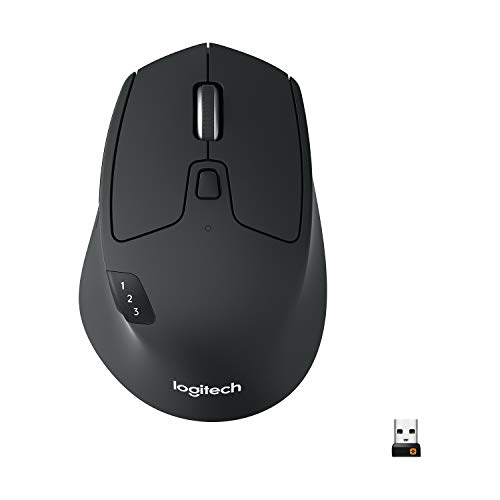
Best for editors who work across multiple devices or setups. With up to 24 months of battery life, the M720 supports Computers, Laptops, Tablets across Windows, macOS, Chrome OS, Linux, and iPadOS. Its comfortable right-handed grip suits long editing sessions, while Hyper-Fast Scrolling helps rush through lengthy transcripts or notes. The click-to-click option provides reliable, predictable scrolling when accuracy matters.
- Best for: Multi-device workflows and long editing sessions
- Why selected: Strong battery life and cross-platform compatibility
- Limitation: Bulkier design; may feel large for smaller hands
ProtoArc EM11 NL Wireless Ergonomic Vertical Mouse

Best for editors who prioritize a vertical ergonomic design to reduce wrist strain during long sessions. The EM11 NL supports dual Bluetooth and 2.4G USB-A connections, allowing up to three devices simultaneously. A rechargeable 500mAh battery and Type-C charging keep you productive between charges. This model emphasizes a natural hand position and comfortable thumb rest, which can be advantageous during intensive editing tasks.
- Best for: Ergonomic-focused editors needing multi-device connections
- Why selected: Vertical design reduces wrist angling and fatigue
- Limitation: Venturing into vertical form may require adjustment for precision-heavy tasks at first
Logitech MX Master 4 For Mac
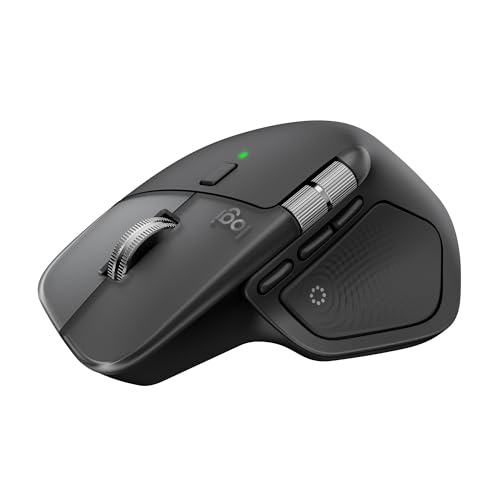
Best for Mac-focused editors who want seamless macOS integration. The MX Master 4 for Mac is tuned for macOS with Logi Options+ support and an Apple-friendly finish. It includes Haptic Sense Panel and the Actions Ring for quick access to common video editing tools and filters. USB-C charging aligns with modern Mac setups, though a charging cable is not included. It offers a close fit for Apple users seeking a premium editing workflow on a familiar platform.
- Best for: Mac users needing native macOS integration
- Why selected: Mac-optimized features and finish align with Apple ecosystems
- Limitation: Limited to macOS-friendly features; optional cross-platform use may require tweaks
Logitech MX Master 3S Bluetooth Wireless Mouse

Best for editors who want a Bluetooth-only solution with a quiet click profile. The MX Master 3S supports Bluetooth and offers an 8000 DPI sensor for precise control and surface versatility, including glass. Quiet clicks provide a quieter editing environment, which may be preferable in shared or quiet rooms. This model is a classic option for users who do not require a USB receiver.
- Best for: Bluetooth-only setups or quiet environments
- Why selected: Quiet clicks combined with high-precision tracking
- Limitation: Bluetooth-only; may lack newer MagSpeed features
TECKNET Wireless Mouse, Side Scroll Bluetooth

Best for editors who need multi-device switching and a solid mid-range option. The TECKNET model supports two Bluetooth connections plus a 2.4GHz USB-A receiver, enabling three-device switching. A metal scroll wheel provides a refined tactile feel, and six DPI levels let you tailor sensitivity to the task. This mouse suits those seeking a balance of performance and affordability for mixed editing tasks.
- Best for: Editors who want three-device switching at a reasonable price
- Why selected: Flexible connection options and a reliable scroll wheel
- Limitation: Non-programmable buttons; limited customization compared to premium models
Buying Guide: Key Considerations For Video Editing Mice
- Precision and DPI: High DPI sensors help with zooming and timeline scrubbing. Look for mice offering adjustable DPI that aligns with editing software like Premiere Pro, DaVinci Resolve, or Final Cut Pro.
- Ergonomics: Longer editing sessions demand comfortable grips. Vertical designs or contoured shapes can reduce wrist fatigue.
- Haptic Feedback and Shortcuts: Haptic panels and ring-access tools can speed up workflows by placing common actions at the cursor’s reach.
- Multi-Device Connectivity: If you work across devices, prioritize mice that support Bluetooth, USB receivers, or both, with easy device switching.
- Scrolling Mechanisms: A fast MagSpeed wheel benefits timeline navigation, while quiet clicks reduce noise in shared spaces.
- Mac vs Windows Compatibility: Some models offer macOS-specific features; others provide broad cross-platform functionality. Verify software support like Logi Options+.
- Battery and Charging: For wireless mice, consider battery life and whether USB-C charging is available or if a rechargeable option is included.
FAQ
- Which mouse is best for video editing on a Mac? Answer: A model with macOS optimization and native software support, such as the MX Master 4 for Mac, is designed for Mac users and often integrates better with Apple workflows.
- Do I need a wireless mouse with a USB receiver? Answer: Not necessarily. If you frequently switch devices, Bluetooth models or dual-mode mice offer more flexibility, but USB receivers can provide stronger, lag-free connections in some setups.
- Is haptic feedback useful for editing? Answer: Haptic feedback can provide tactile cues for actions and shortcuts, potentially speeding up workflow for users who like tactile confirmation during tool changes.
- Should I choose a vertical mouse for editing? Answer: A vertical mouse can reduce wrist strain and is worth trying if you experience discomfort during long sessions, though it may require an adjustment period for precise control.
- What is the advantage of a programmable ring or panel? Answer: It enables quick access to frequently used tools, filters, and shortcuts, reducing cursor travel and context switching during editing tasks.
- Can I use any mouse across editing software? Answer: Most mice are compatible with major editing suites, but features like advanced shortcuts or haptic feedback may be software-specific. Check driver and software support for best results.