Answering your search for reliable file backup solutions, this guide highlights five strong options for Windows users: full-system image backup, robust software suites, and portable drives with built-in protection. These choices suit different buyers—from everyday file protectors to IT-minded users needing complete system recovery. The quick-reference table below compares key strengths for each pick.
| Product | Best For | Type | What It Does |
|---|---|---|---|
| Backup Pro 27 | Power users needing full-system backups | Software | System-wide backups, restores, cloud and local storage |
| WD My Passport 2TB | Portable, on-the-go protection | External Drive | Ransomware defense, password protection, USB compatibility |
| AOMEI Backupper PRO | All-in-one Windows backup | Software | Backup, recovery, file sync, disk cloning |
| WD My Passport 4TB | High-capacity portable backup | External Drive | Ransomware defense, password protection, cloud options |
| NTI Backup Now EZ 7.5 | 4-in-1 backup solution | Software | Scheduled, cloud, image, and file/folder backups |
Backup Pro 27 — Full System Backup

Best for power users who want complete control over a Windows-based system image. The software supports backing up all data types and applying smart rules for Outlook, Firefox, IE, Chrome, Edge, and Thunderbird. It also offers flexible storage options, allowing backups to hard drives, USB drives, network shares, and the cloud. This makes it ideal for IT professionals or hobbyists who require a thorough, restorable snapshot of a PC. A potential limitation is that advanced features may require careful setup to avoid misconfigured restore points.
WD 2TB My Passport — Portable Backup Drive
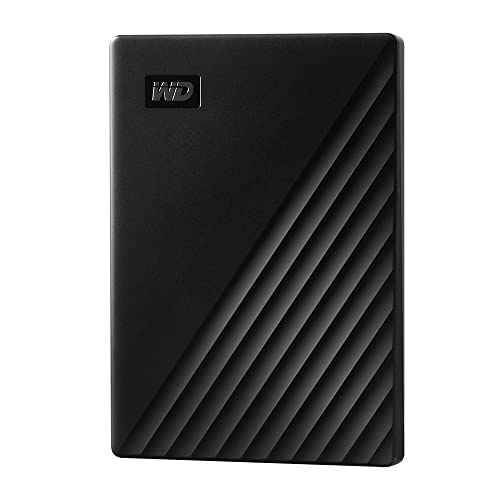
This slim, durable portable drive is best for users who need to carry important files anywhere. It supports up to 2TB, with a focus on convenience and protection. The included device management software provides ransomware defense, making it a practical choice for on-the-go professionals and students who want a simple, secure backup companion. A caveat: external drives may require separate backup scheduling to remain up-to-date with changing files.
AOMEI Backupper PRO
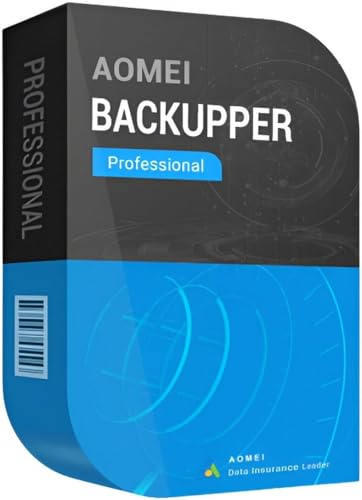
Best for Windows users seeking an all-in-one backup suite, including malware protection, disaster recovery, file synchronization, and disk cloning. The software emphasizes instant recovery after system failure and easy restoration of backups, which helps minimize downtime. It is a strong pick for small offices or tech-savvy individuals who want a robust, comprehensive backup strategy. Note that learning the interface may take a little time for complete beginners.
WD 4TB My Passport — High-Capacity Portable Drive
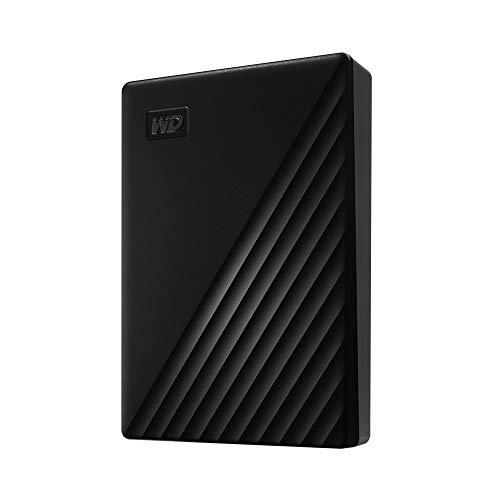
This larger capacity drive is best for users who need substantial local storage with built-in ransomware protection and password features. It’s ideal for media libraries, backups of multiple machines, or scenarios where network options are limited. A potential limitation is that higher capacity requires more physical space and may take longer to back up initial data.
NTI Backup Now EZ 7.5

Best for users who want a 4-in-1 backup solution with options for scheduled backups, cloud storage, full PC image backups, and file/folder backups. It supports multiple Windows versions and offers both CD and download availability. Use this if you prefer a versatile, user-friendly backup workflow with flexible deployment. A limitation is that some advanced features may require navigation through the setup wizard.
Data Recovery Software (Windows Compatibility)

Designed to retrieve deleted or lost files, this option covers a broad range of formats—documents, media, and emails. It is best for users who need a dedicated recovery tool to rescue accidentally deleted items or items lost from the recycling bin. It is not a full-system backup solution, but it complements a backup strategy by offering targeted recovery when needed.
Nero BackItUp — Data Backup Software

Best for users seeking a fully automated, single-purchase backup solution. Nero BackItUp offers cloud, local, and external backups with a lifetime license, avoiding ongoing subscription costs. It is suitable for home users who want reliable, low-maintenance backups. A limitation is that cloud options may depend on additional account configurations and storage limits.
WD 5TB My Passport — Large Capacity Backup

Best for power users needing extra space with robust defense against ransomware and password protection. The 5TB capacity supports expansive media libraries or multi-device backups. A caution: larger drives can be slower to complete initial backups and require careful cataloging to manage space efficiently.
Buying Guide: How To Choose The Right Backup Solution
- What level of protection do you need? For complete system recovery, prefer full-system image backup software or a drive with integrated protection.
- Do you want cloud options or local-only backups? Cloud backups enable off-site safety, while local backups are faster and don’t rely on internet access.
- How will you manage multiple devices? Consider software that supports multiple PCs or annual licenses if you manage more than one computer.
- What capacity is appropriate? External drives are great for large media libraries; software alone is best for preserving system configurations and data sets.
- Is ransomware protection important? Drives with built-in ransomware defense and encryption help deter threats before they impact data.
Frequently Asked Questions
- What is the difference between file backup and full-system image backup?
– File backup saves selected files and folders, while a full-system image backup captures the entire OS, applications, and settings for complete restoration. - Can I back up to both local drives and the cloud?
– Yes. Many solutions support hybrid backups across local disks and cloud storage for redundancy. - Is ransomware protection essential for backups?
– It helps prevent data encryption by attackers and protects backup copies from tampering. - Do I need lifetime licenses or subscriptions?
– Lifetime licenses remove recurring costs, but some features or cloud storage may require ongoing terms. - How do I perform a restore after a system failure?
– Use the software’s recovery option to boot from recovery media or access a restore point to rebuild the system. - Should I back up automatically or manually?
– Automatic backups ensure data is routinely saved without user action, reducing the risk of forgotten backups.