Data loss happens, but the right recovery software can salvage documents, photos, and important files. This guide highlights five Windows-compatible options that cover common scenarios like accidental deletion, formatting, or corrupted drives. Each pick targets different user needs—from beginners seeking simple scans to power users handling complex recoveries. Read on to choose the best fit for your situation, whether you’re a home user, student, or small business owner. The table below compares the top five products at a glance.
| Product | Best For | Key Strength |
|---|---|---|
| Data Recovery software compatible with Windows 11, 10, 8.1, 7 | Everyday file recovery | Simple recovery across common file types |
| Stellar Data Recovery Professional for Windows | Power users and professionals | Broad file format support and device compatibility |
| Data Recovery Stick for Windows | On-the-go recovery | Plug-and-recover workflow, USB/SD card coverage |
| Data Recovery Professional [Download] — Avanquest | Easy, no-frills recovery | Broad device support and multiple file types |
| Advanced File Recovery — Systweak | Expanded media recovery | Recovery from formatted or unbootable drives |
Note: Each product is listed with its publicly available features. This guide avoids speculative claims and focuses on clearly stated capabilities to help you compare options quickly.
Data Recovery Software Compatible With Windows

This entry targets users who need a straightforward recovery tool for Windows PCs. It supports recovering deleted and lost files, including documents, images, audio, videos, and emails. Best for casual users and home computers where quick scans are valued. Limitation: features are described generally, with no explicit emphasis on advanced partition recovery or RAW scanning.
Stellar Data Recovery Professional for Windows

Best for professionals and power users who need broad file-type support and recovery from multiple storage media. It handles Word, Excel, PDF, and more, across internal and external drives, including NTFS, FAT, and exFAT formats. Choose this if you regularly recover diverse file types from varied devices. Caution: performance depends on drive health and complexity of data loss scenarios.
Data Recovery Stick for Windows
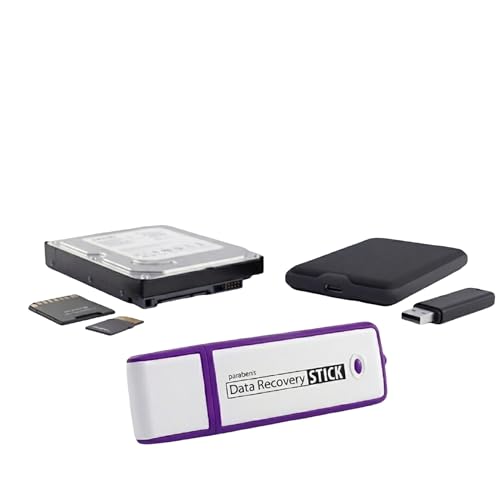
Best for users seeking a portable, plug-and-recover solution. The Data Recovery Stick supports Windows systems from Vista onward and recovers a wide range of file types, including photos, documents, and multimedia. It works with FAT and NTFS formats. Limitation: a media reader may be required for micro SD cards, which can add setup steps.
Data Recovery Professional [Download] — Avanquest

Best for users who want a downloadable option with broad support for drives, cameras, memory cards, and more. It claims recovery of deleted folders and over 300 file types, including partitions and formatted drives. Consider this if you prefer a one-time download rather than cloud-based services. Limitation: some users may require guidance for complex recovery scenarios on heavily damaged media.
Advanced File Recovery — Systweak

Best for users needing to recover data from formatted, crashed, or unbootable drives. It supports PC, hard drives, USB devices, SD cards, and other external media. Choose this if you require a broader recovery scope across damaged drives. Caution: interface and workflow may be more technical for beginners.
Buying Guide
What to consider when choosing data recovery software:
- File type coverage: Ensure the product can recover your most important file formats (documents, photos, audio, video, emails, etc.).
- Storage media supported: Look for compatibility with hard drives, SSDs, USB drives, SD cards, and camera memory cards.
- File system support: Check NTFS, FAT, and exFAT compatibility for Windows devices.
- Scans and recovery modes: Prefer tools with quick scans for common losses and deeper RAW/formatted drive scans for difficult cases.
- Ease of use: If you’re non-technical, prioritize guided workflows and clear instructions.
- Delivery method: Decide between download vs. USB stick. Some users prefer portable solutions for on-the-go recovery.
- Device health considerations: Some tools offer additional drive health monitoring or bootable options to recover data from failing drives.
FAQ
- What is data recovery software best used for?
It helps restore deleted, formatted, or corrupted files from Windows devices and removable storage across common file types.
- Do I need to install software on the same drive I’m recovering from?
Not always. Some scenarios require scanning from a separate drive to avoid overwriting data on the target drive.
- Can these tools recover data from damaged hard drives?
Many products offer advanced scanning that attempts recovery from damaged or unbootable drives, but success varies by condition.
- Is a USB recovery stick more reliable than software installed on my PC?
USB sticks provide portability and can reduce system write tests on the original drive, which helps in some cases.
- Will these tools recover data from SSDs and NVMe drives?
Yes, most modern data recovery tools support SSDs and NVMe formats, though results depend on drive health and data loss nature.
- Should I attempt professional data recovery?
If the data is highly valuable or the drive is physically damaged, consider professional services after initial software attempts.