Looking for a budget-friendly 144Hz monitor that balances speed, image quality, and value? This guide highlights solid 144Hz options that won’t break the bank. Each pick targets different needs—competitive gamers, dual-monitor setups, or office buyers wanting smooth motion without premium costs. The table below compares five capable models to help you decide quickly.
| Model | Screen Size | Resolution | Why It Stands Out |
|---|---|---|---|
| Sceptre E225W-FW144 | 22 inches | Full HD 1080p | Integrated speakers; slim bezel; easy on the eyes |
| ArcticPro 22 Inch | 22 inches | Full HD 1080p | Wide viewing angles; smooth 144Hz; solid for work and play |
| MSI PRO MP243L E14 | 23.8 inches | Full HD 1080p | IPS panel; TÜV Flicker Free; reliable gaming performance |
| ArcticPro 24 Inch | 24 inches | Full HD 1080p | IPS, wide color, frameless design |
| Dell SE2426H | 23.8 inches | Full HD 1080p | 144Hz, 1ms response; eye-friendly certification |
Sceptre New 22-Inch Gaming Monitor FHD 144Hz

The Sceptre E225W-FW144 series targets budget gamers who want a dedicated 144Hz option without extras. Best for users who value built-in speakers to reduce desk clutter and a compact secondary monitor for a dual-screen setup. The display promotes eye comfort with Blue-Light Shift and a near-bezel-free design for seamless multi-monitor arrangements. A caveat: as a smaller 22-inch panel, it may feel less immersive for movie watching compared with larger options.
ArcticPro 22 Inch Gaming Monitor 144Hz

The ArcticPro 22 Inch brings 144Hz in a compact 22″ form with Full HD resolution and a wide viewing angle. It suits gamers who need a responsive display without extra weight on the desk, and it works well for productivity tasks that benefit from smoother scrolling. The 178° viewing angles on the VA panel help maintain consistent color from multiple positions. Consider this model if you want a budget 144Hz alternative with solid contrast, but be aware of potential color shift at extreme angles.
MSI PRO MP243L E14 24-Inch 144Hz IPS

The MSI PRO MP243L E14 uses a 23.8-inch IPS panel, delivering wide viewing angles and accurate colors ideal for both gaming and general productivity. With 144Hz refresh and TÜV Rheinland Flicker Free certification, it emphasizes smoother motion and eye comfort during long sessions. It’s a strong pick for users who value color accuracy and a slightly larger screen without paying premium prices. A potential drawback is that this model sits in the mid-budget tier, so it may lack some premium gaming features found on higher-end IPS displays.
ArcticPro 24 Inch 144Hz IPS Monitor
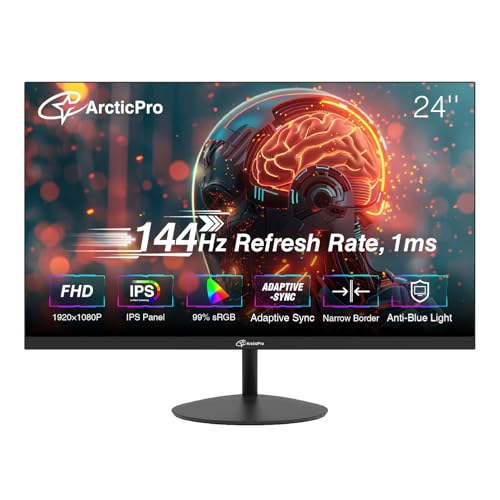
This 24-inch ArcticPro model emphasizes an IPS panel with a wide color gamut and 144Hz for smoother motion. The 3-sided frameless design Suitable for multi-monitor setups helps create an expansive desk workflow. It’s a good choice for those who want a larger screen to replace two smaller monitors or enhance immersion in games. A limitation is that higher color accuracy may require calibration for certain professional tasks.
Dell SE2426H 23.8-Inch FHD 144Hz

The Dell SE2426H provides a reliable 144Hz experience with 1ms MPRT response time and IPS-like viewing. TÜV-certified eye comfort helps reduce blue light exposure for extended sessions. It’s well suited for budget-conscious buyers who want a dependable screen for both work and fast-paced games. A limitation could be that some users may prefer higher brightness or more aggressive gaming features found in pricier models.
Buying Guide: Key Considerations For Budget 144Hz Monitors
- Panel technology: IPS panels deliver better color and viewing angles, while VA panels often offer higher contrast. For mixed gaming and work, IPS is typically the better all-round choice.
- Refresh rate and response: 144Hz with low 1ms MPRT or similar response times provide smoother motion; note that some monitors advertise 144Hz with adaptive overclocking that may not hold in all scenarios.
- Blue light and eye comfort: Look for TÜV certified or equivalent blue-light reduction features to minimize eye strain during long sessions.
- Connectivity: Ensure you have HDMI and DisplayPort options that fit your PC or console setup. Consider built-in USB hubs if desk connectivity matters.
- Bezel design and stand: Slim bezels help with multi-monitor configurations. Check tilt, height, and pivot adjustments if ergonomic positioning is important.
- Size and desk space: Budget 144Hz options range from 21.5 to 24 inches. Choose a size that matches your desk space and viewing distance.
- Use case balance: If you prioritize competitive gaming, prioritize low input lag and motion clarity. If you also edit photos or videos, color accuracy and IPS performance gain importance.
Frequently Asked Questions
- What does 144Hz mean for gaming?
It indicates the display can refresh up to 144 times per second, resulting in smoother motion and reduced motion blur for fast-paced games. - Is IPS really worth it for a budget monitor?
Yes, for most users, IPS provides better color accuracy and wider viewing angles than VA or TN panels, improving both gaming visuals and productivity. - Do budget 144Hz monitors support FreeSync or G-Sync?
Many budget models include FreeSync compatibility or Adaptive-Sync features; check each model’s specifications to confirm compatibility with your GPU. - Can a 24-inch 1080p monitor feel sharp enough?
For most desk setups, 24-inch at 1080p is a comfortable balance between pixel density and performance; at close viewing distances, you may notice pixel visibility less on larger screens. - Should I upgrade to a 144Hz monitor from 60Hz?
If you play fast-paced games or value smoother cursor movement, upgrading to 144Hz provides a noticeable improvement in motion clarity and responsiveness. - What is the best budget monitor for dual-monitor setups?
A smaller first monitor with a near-bezel design or a larger second display with a matching footprint helps minimize visual gaps in a multi-monitor arrangement.